Managing the Customer Control Panel
Find out how the Customer Control Panel (CCP) works and what to do if you forget your password or your email address.
1. Logging In to the Customer Control Panel (CCP)
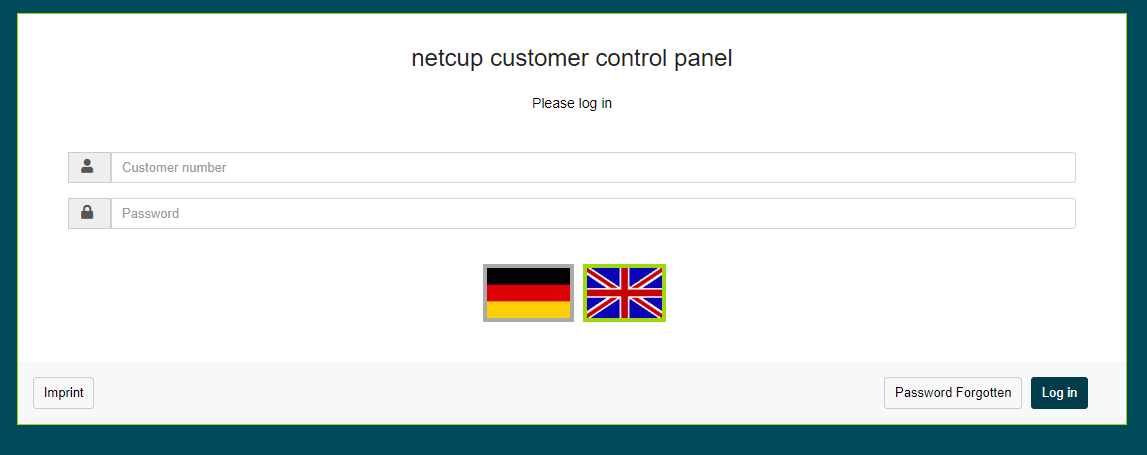
- To log in to the Customer Control Panel (CCP) for the first time, use the login details you received by email.
- After the first login, you should change the original password to one that only you know. To do so, click Master Data in the menu bar.
- For best security practices, choose a passphrase that is long and unique. It should use both capital and lowercase letters, include numbers and symbols and not be used for anything other than the CCP.
2. Resetting Password
- Click Password Forgotten at the bottom right of the login panel.
- This will bring up the recovery wizard, which will ask for either your customer number or your email address. Enter the information and click Request email.
- If the information you provided matches the data we have on file, you will receive an email explaining the next steps.
3. Resetting Email Address
If you no longer have access to your email address, please contact Customer Support.
4. Logging In to Other Panels
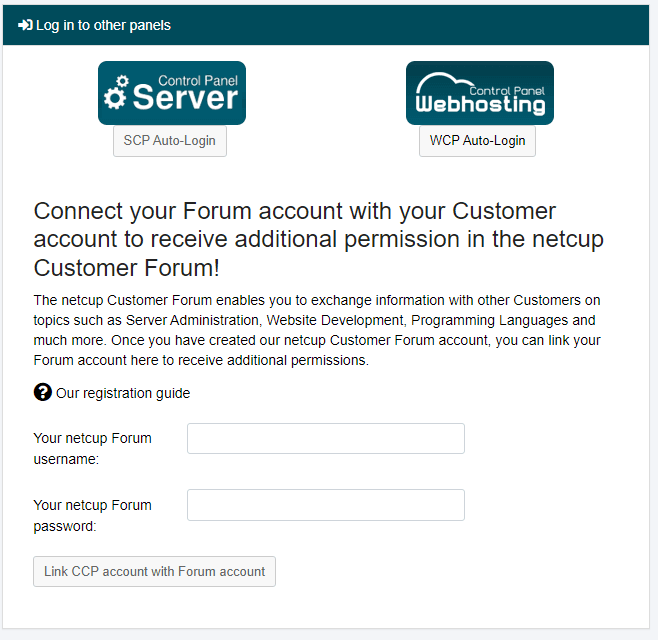
You can log in to the Server Control Panel (SCP) and the Web Hosting Control Panel (WCP) under the Overview menu item in the Log in to other panels section.
- Click on the corresponding button, SCP Auto-Login or WCP Auto-Login.
- SCP Auto-Login will redirect you to the SCP in a new browser tab.
- WCP Auto-Login takes you to Products in the CCP, where you can manage your web hosting instances and associated domains and access the Plesk interface.
To find out how to log in to the forum, go to: Creating and Linking a Forum Account
5. Viewing Outstanding Invoices
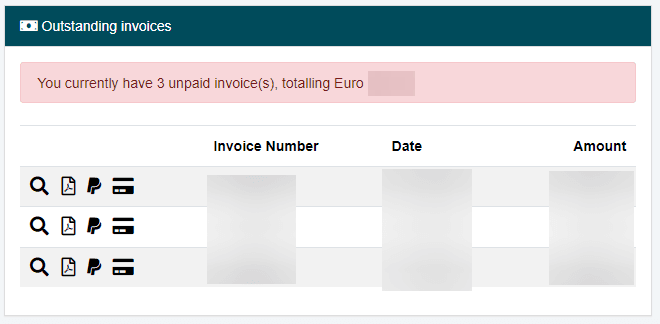
You can view relevant information about your current invoices under the Overview menu item in the Outstanding invoices section.
- Click on the Magnifying Glass Icon to the left of an invoice to open the invoice in your browser.
- Click on the PDF Icon to export the invoice as a PDF file.
- Click on the PayPal Icon to pay the invoice directly via PayPal.
This section also displays outstanding credits, which may consist of refunds or payouts from our affiliate program. Click on the Banknote Icon to request a payout for a credit.