
Exporting SOGo Groupware Data
Learn how to export your SOGo Groupware data.
1. Moving Email Inboxes
See Moving Email Inboxes to learn how to migrate your email inbox using our free Mailsync online tool.
If you have been using SOGo-based groupware plans solely for sending and receiving emails, we recommend switching to our web hosting plans. These also allow you to create email accounts and use them to send and receive emails. DNS records for hosting (A and AAAA) can point to another provider or be removed if you do not intend to use the hosting service. Please note, however, that we do not manage traditional groupware features (e.g., sharing mailboxes, shared address books, calendars) in this case. This is strictly web and email hosting.
2. Exporting Calendar
- Log in to the SOGo web interface.
- Switch to the Calendar.

3. Click the Three-Dot Icon next to Persönlicher Kalender.

4. Click Export in the drop-down menu.

The Persönlicher Kalender.ics file will then begin downloading. If the download does not start, try using a different web browser.
This process must be repeated for each calendar.
3. Exporting Contacts
- Log in to the SOGo web interface.
- Switch to the Address Book.

3. Click the Three-Dot Icon next to Persönliches Adressbuch.

4. Click Export in the drop-down menu.
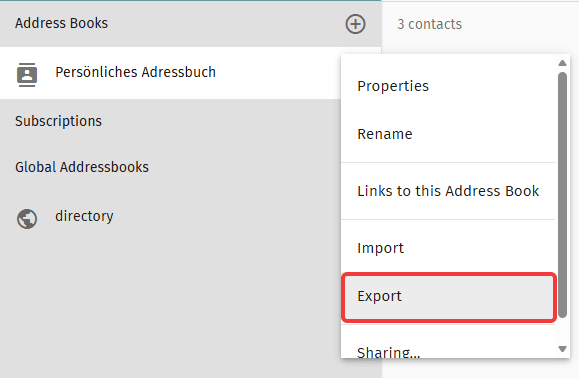
The Persönliches Adressbuch.ldif file will then begin downloading. If the download does not start, try using a different web browser.
This process must be repeated for each address book.
Alternatively, you can back up your data externally using the email, calendar, and contacts apps you use. For instructions on how to do this, check the user guides for the apps you use.
4. Frequently Asked Questions (FAQ)
Last update: 15 September 2026
Was this article helpful?