
Setting Up the Backup Manager
Learn how to use the Backup Manager.
Starting with the Web Hosting 2000 plan, a Backup Manager is available in the Webhosting Control Panel (WCP).
With web hosting, emails cannot be backed up as the mail server and web server operate separately from each other. Use an external tool to back up emails.
1. Opening the Backup Manager
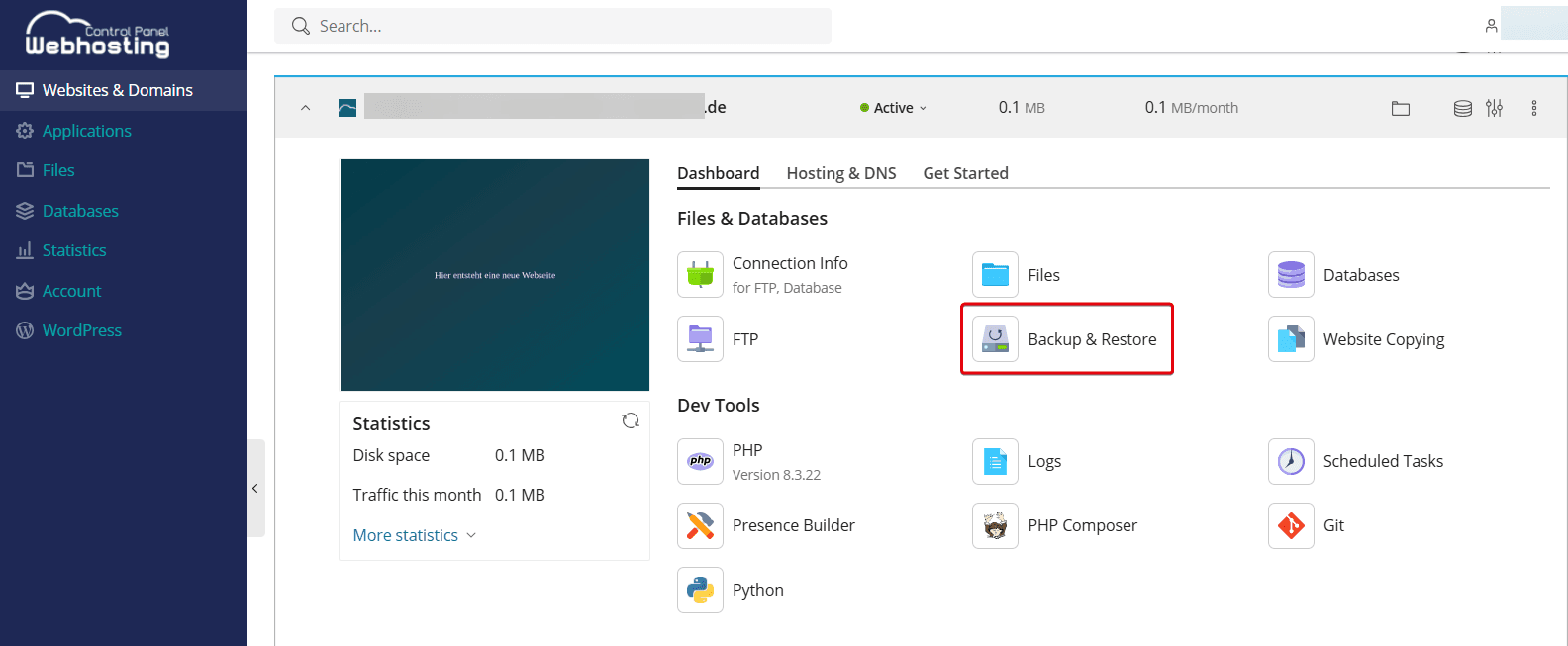
Select your desired domain under Websites & Domains, and click Backup & Restore in the Dashboard.
2. Creating a One-Time Backup
- Click Back Up in the Backup Manager
- Select which content to back up. Note: Emails are not backed up because mail and web servers operate separately from each other. Use an external tool to back up emails.
- Under Type, select whether you want to make a full or incremental backup. With an incremental backup, only the data that has changed since the last backup is saved.
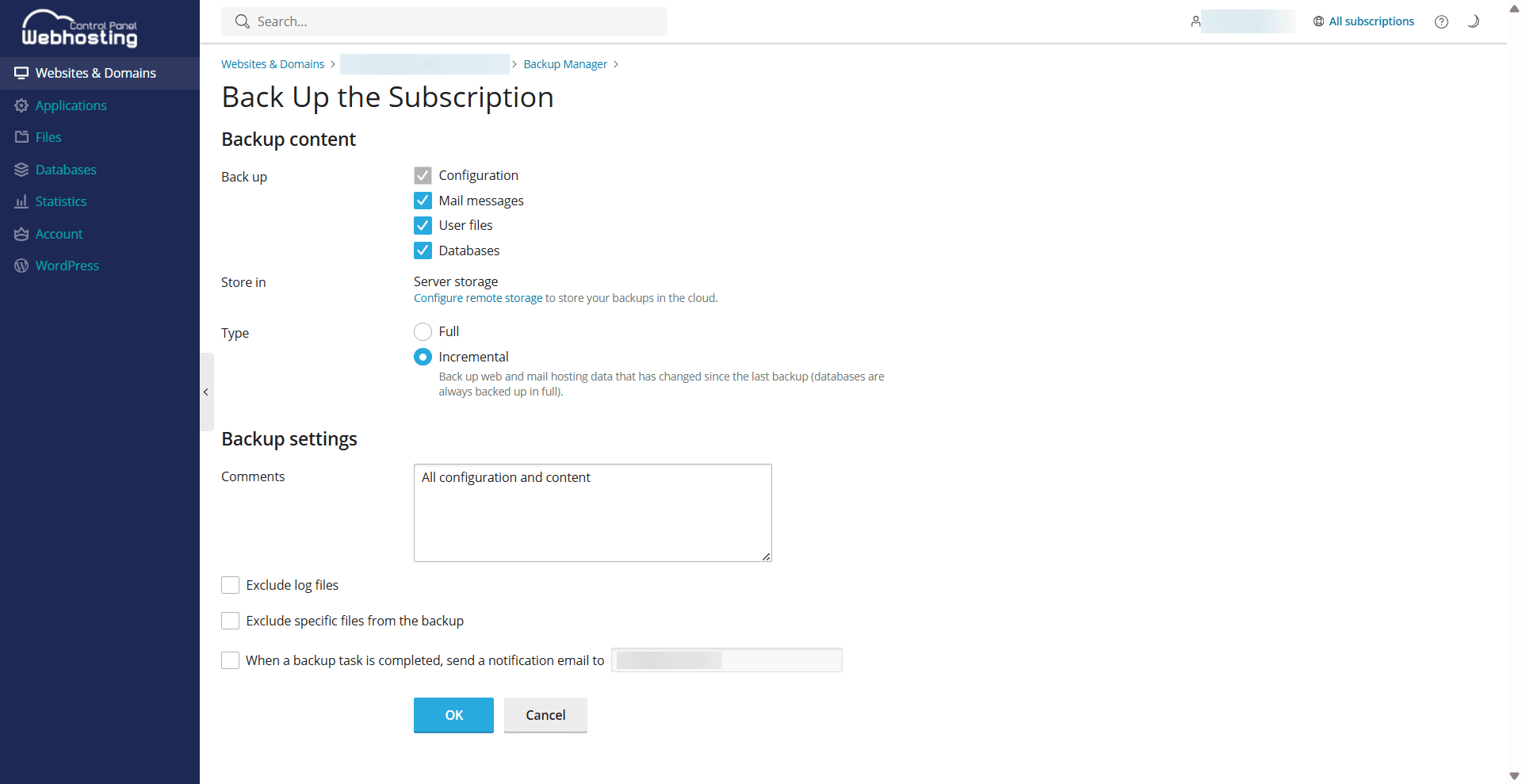
4. Click OK.
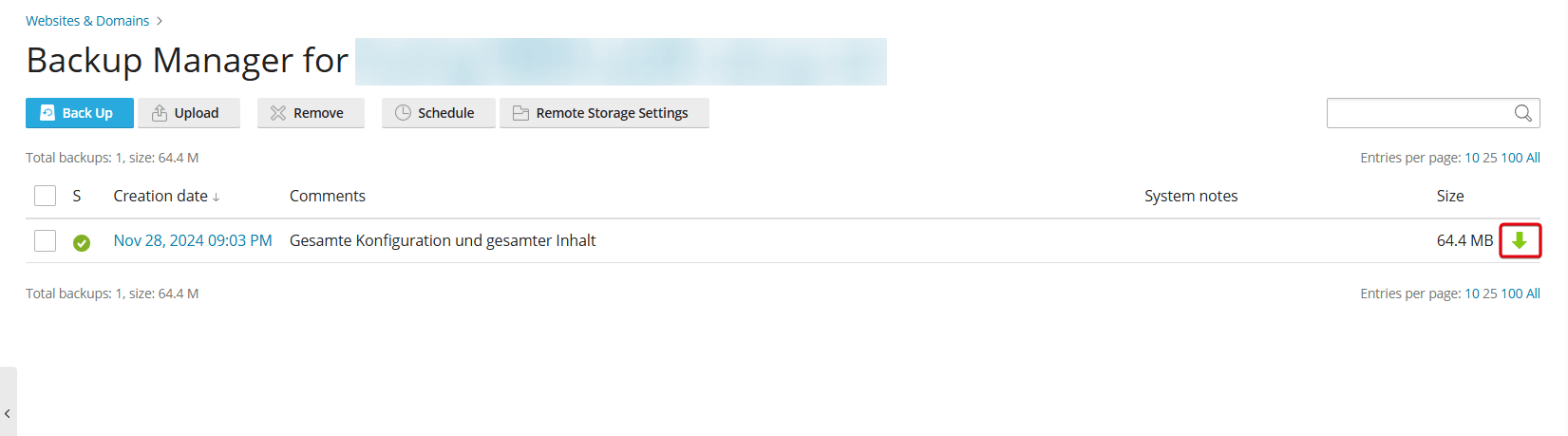
5. The backup will then appear in the overview. Click on the Arrow-Icon to download the file.
3. Setting Up a Recurring Backup
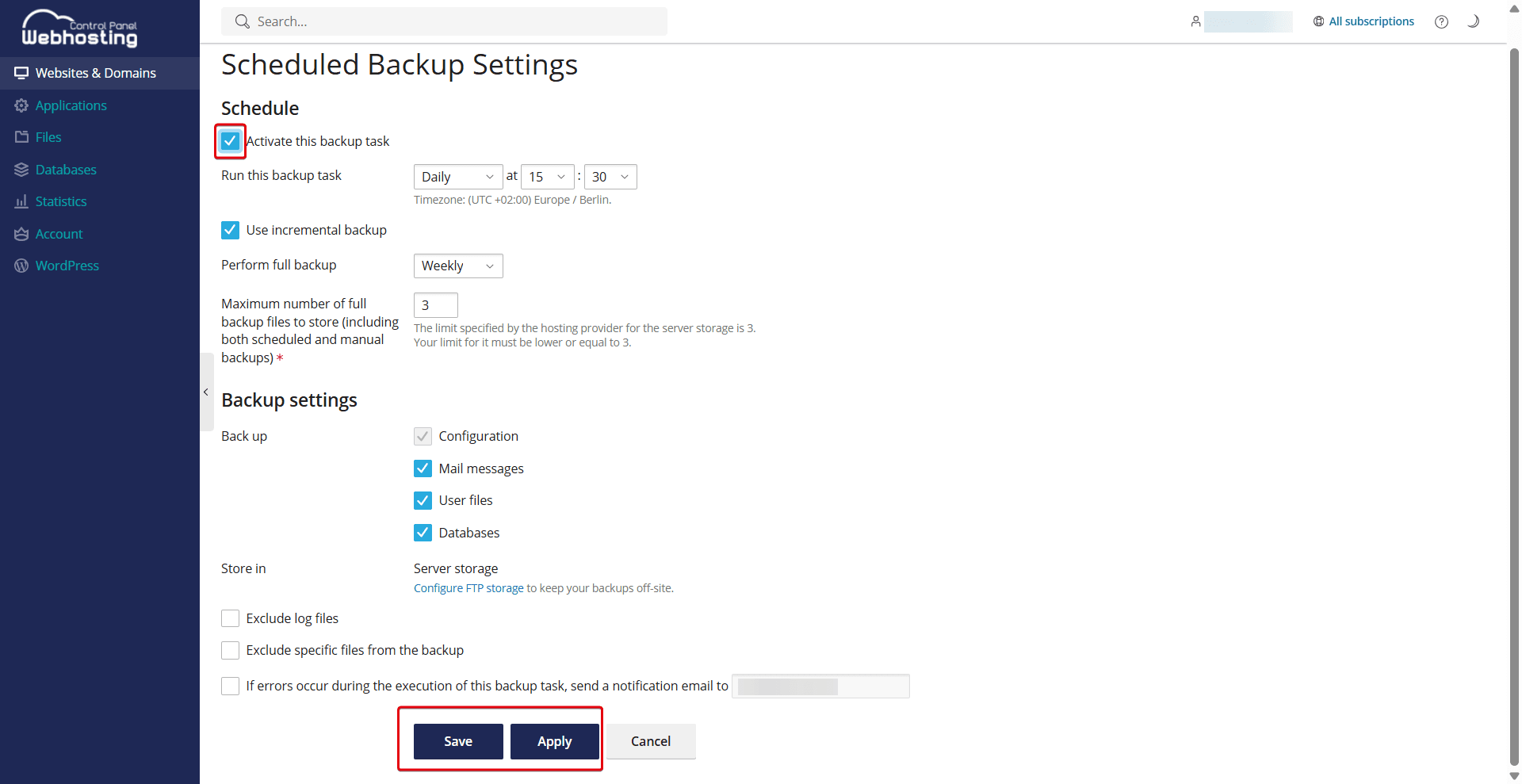
- Click Schedule in the Backup Manager.
- Check the box next to Activate this backup task.
- Select a time.
If you only want to back up data that has changed since the last backup, check the box next to Use incremental backup.
- Select how often a full backup should be performed.
- Select which content to back up. Note: Emails are not backed up because mail and web servers operate separately from each other. Use an external tool to back up emails.
- Click Save to confirm your settings.
- Click Apply to start your scheduled backup.
4. Restoring a Backup
Please note that backups can only be restored to the same hosting. Backups from different hosts can lead to problems. You have the option of unpacking the backup archive locally and manually uploading the files it contains to the relevant directories.
To upload a backup, proceed as follows:
- Open the Backup Manager.
- Click Upload.
- Click Select File and choose your backup file.
- Enter your password, if necessary, and click OK.