
Logging In to the Server Control Panel (SCP)
Find out how to log in to the Server Control Panel (SCP).
1. Logging In to the Server Control Panel (SCP) for the First Time
You can also log in to the Server Control Panel (SCP) using the auto-login feature in the Customer Control Panel (CCP).
- When you log in to the SCP for the first time, you must use the credentials you received via email.
- After the first login, you should change the original password to one that only you know.
- For best security practices, choose a passphrase that is long and unique. It should use both capital and lowercase letters, include numbers and symbols, and not be used for anything other than the SCP.

2. Activating Two-Factor Authentication (TOTP)
Please note that starting July 20, 2026, the SCP will support Two-Factor Authentication (2FA) directly during the login process.
- Log in to the Server Control Panel (SCP).
- In the Account menu item, go to Settings.
- In the Account Data section, click Activate Two-Factor Authentication.

4. Install an authenticator app on your smartphone that supports TOTP (Time-based One-time Password). We recommend the following apps:
- Android: Aegis or Anexia Authenticator (external links)
- iOS: Authy or Anexia Authenticator (external links)
For security reasons, do not use the same device for the authentication app that you use to log in to the SCP.
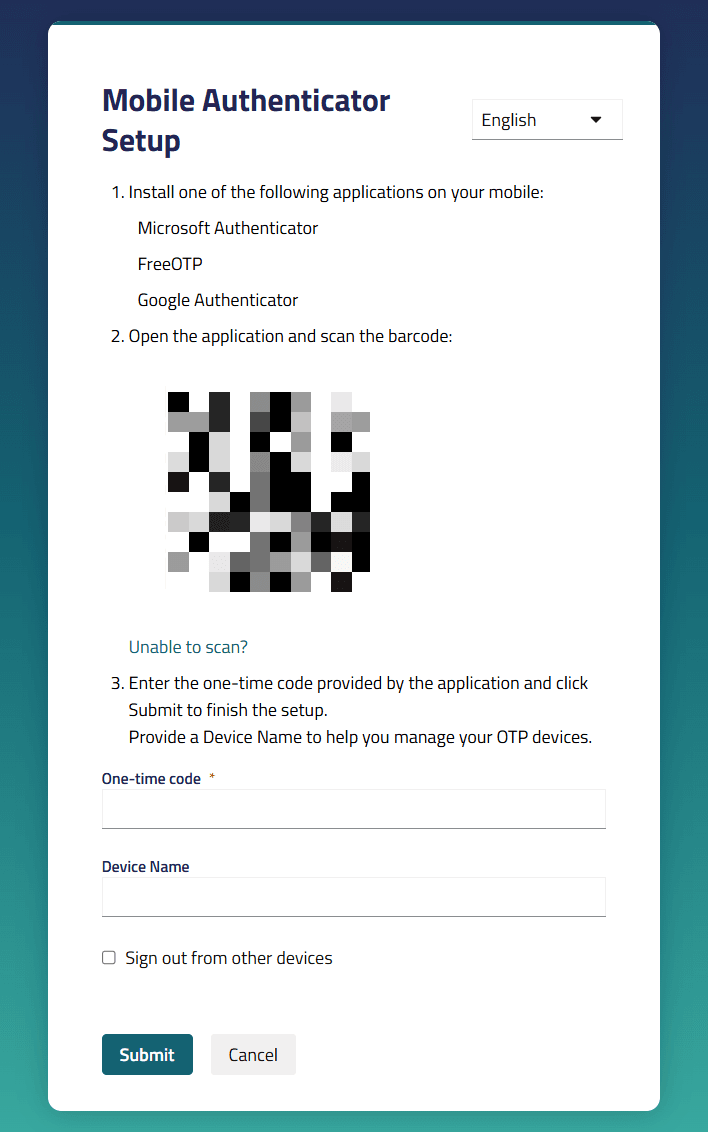
5. Confirm the setup by entering the TOTP generated by the app.
From now on, when you log in with your username and password, you'll be prompted to enter a TOTP.
3. Activating Passkeys
Once you've enabled 2FA, you can register a passkey (Two-Factor Authentication (Passkey)) that will be used to log in with your username and password. For passwordless login in SCP, you can also register a passkey (Passwordless Login (Passkey)), which allows you to log in without your username and password.
To register a passkey, follow these steps:
- Log in to the Server Control Panel (SCP).
- In the Account menu item, go to Settings.
- Under Account Data, click the appropriate Activate Passkey button.

4. Click Register.

The following steps may vary depending on your operating system and the browser or password manager you use.
5. In the pop-up window that opens, click Create.

6. Set up a PIN for your password manager and click Confirm. Make sure to remember it.

7. Enter the name of your registered passkey and click OK.

Once you've set up the passkey and PIN and named the passkey, you can log in to SCP by clicking Sign in with Passkey. Then, click the saved passkey in the pop-up window and enter your PIN.

Please note that in addition to passwordless login with a passkey, you can also log in using your username and password. If you do so, you can then log in using the passkey you created for 2FA by clicking Sign in with Passkey. You can also click Try Another Way to select a different login method. Here, you can choose between Passkey and Authenticator Application (TOTP).


We strongly recommend that you configure WebAuthn as a 2FA method in addition to TOTP (Authenticator), in case you lose access to one of your 2FA methods.
4. Setting Up Two-Factor Authentication (2FA) and Passkeys Again
If you've lost your 2FA or your passkeys, you have the following options:
Option 1
- Log in to the Customer Control Panel (CCP).
- In the Overview menu item, click SCP Auto-Login in the Log in to other panels section.

3. In the Account menu item, go to Settings.
4. In the Account Data section, click Configuration.

5. Under Signing in, click the appropriate Delete button.

6. Click Confirm deletion.


You can then set up otp (TOTP) and passkeys by clicking Set up Authenticator application or Set up Passkey in the corresponding section under Signing in.
Option 2
If you can no longer access your device using the Authenticator app, you can reset 2FA via the Forgot Password? option. This will reset both your password and 2FA.
Please note that you can also use this option if you are unable to log in to SCP via CCP.
- Click Forgot Password?

2. Enter your email address in the Username field and click Submit.

3. If the information you provided matches the data we have on file, you will receive an email explaining the next steps.

4. Set a new password.
5. Set up 2FA again.
If neither of these options work, and you don't have access to the CCP, you can request a new password for the CCP under Request new Password.