Payment Methods
Find out which payment methods are available to you.
We accept the following payment methods:
Manual payment: Bank Transfer, PayPal
Automatic payment: Credit Card, SEPA Direct Debit
1. Bank Transfer
You can also transfer your invoice amount manually. You can find our bank details on the PDF invoices.
- Make sure that the recipient name and IBAN are correct.
- Enter the invoice number in the reference field.
2. PayPal
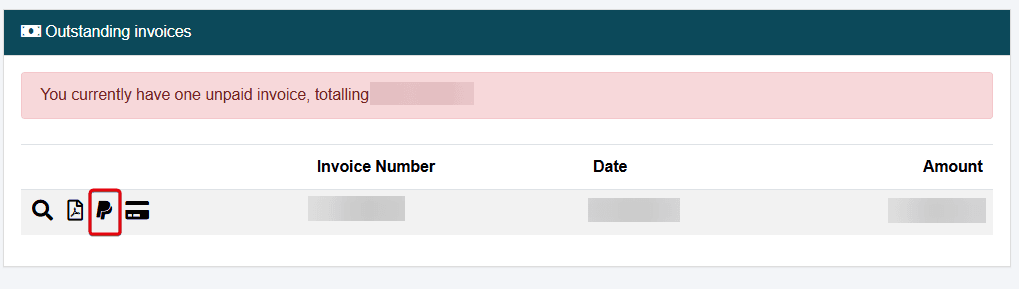
You also have the option of paying your outstanding invoices via PayPal.
- Log in to the Customer Control Panel (CCP).
- Go to the Open Invoices section under the Overview menu.
- Click on the PayPal Icon.
- You will then be redirected to PayPal, where you can complete your payment.
Please note that direct payments via PayPal are not possible. You must make your payment via the Customer Control Panel instead.
3. Credit Card
We accept credit and debit cards from Visa, Mastercard, Diners Club (Discover), and American Express.
When paying by credit card, the invoice amount must be at least €0.50. This minimum amount is set by our payment service provider.
Storing Your Credit Card Details
- Log in to the Customer Control Panel (CCP).
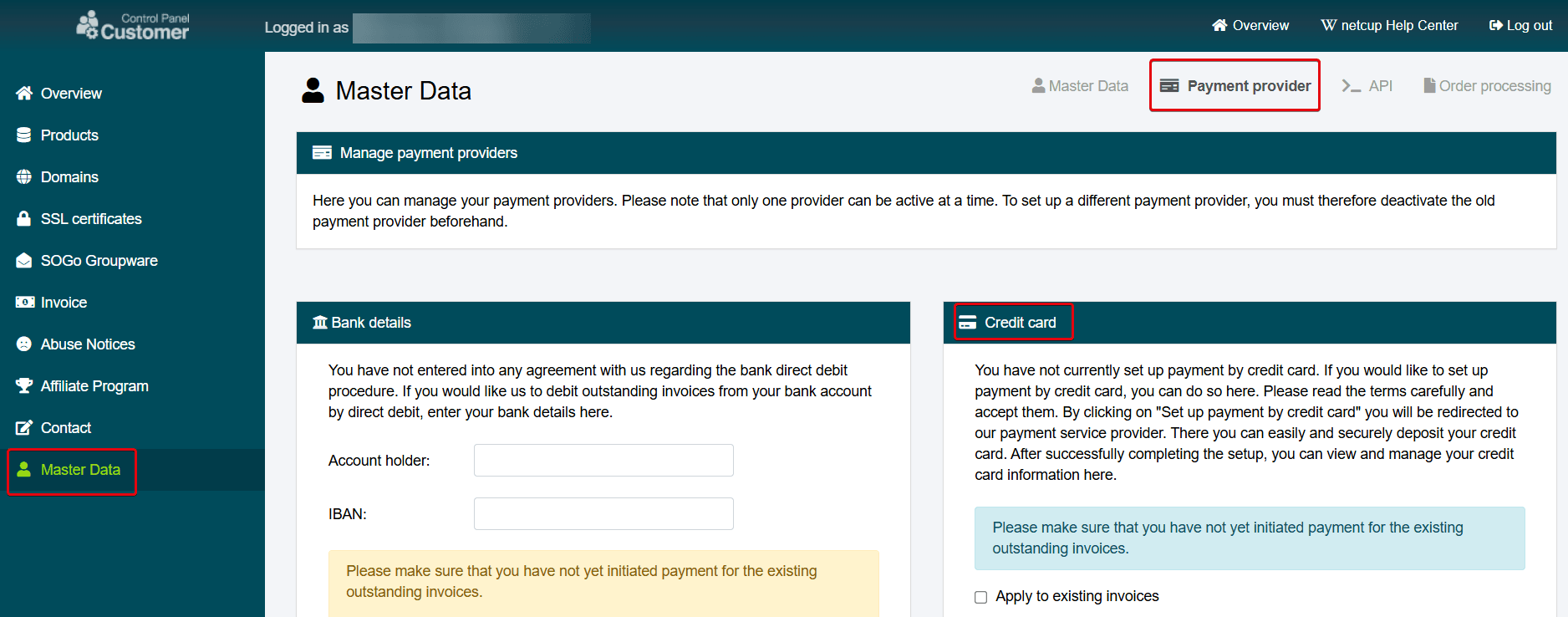
- Go to Master Data > Payment provider.
- Read the terms and conditions in the Credit card section and accept them by checking the box.
- Click Set up payment by credit card and follow the steps.
- Click Save card.
Alternatively, you can enter your credit card details in the Overview menu item under Outstanding invoices. To do so, click on the Credit Card Icon next to the relevant section and follow the steps.
Changing or Deleting Credit Card Details
- Log in to the Customer Control Panel (CCP).
- Go to Master Data > Payment provider in the menu.
- Select Remove payment with credit card to delete your currently stored credit card.
- If you want to store new or updated credit card details, add them after removing the old credit card.
Will payment by credit card be made automatically once I have entered my details?
If you have any outstanding invoices and are providing your credit card details for the first time, you will be asked if you want to apply this payment method to your existing invoices:
- If you agree, any outstanding invoices with a minimum amount of €0.50 or more will be paid automatically by credit card.
- If you do not agree, all future invoices will be paid automatically by credit card, but not those that are currently outstanding.
4. SEPA Direct Debit
You can grant netcup a SEPA mandate. This enables any outstanding invoices to be automatically debited from your bank account.
SEPA Direct Debit is only available to customers with a bank account in a SEPA member country.
Setting Up a SEPA Mandate
- Log in to the Customer Control Panel (CCP).
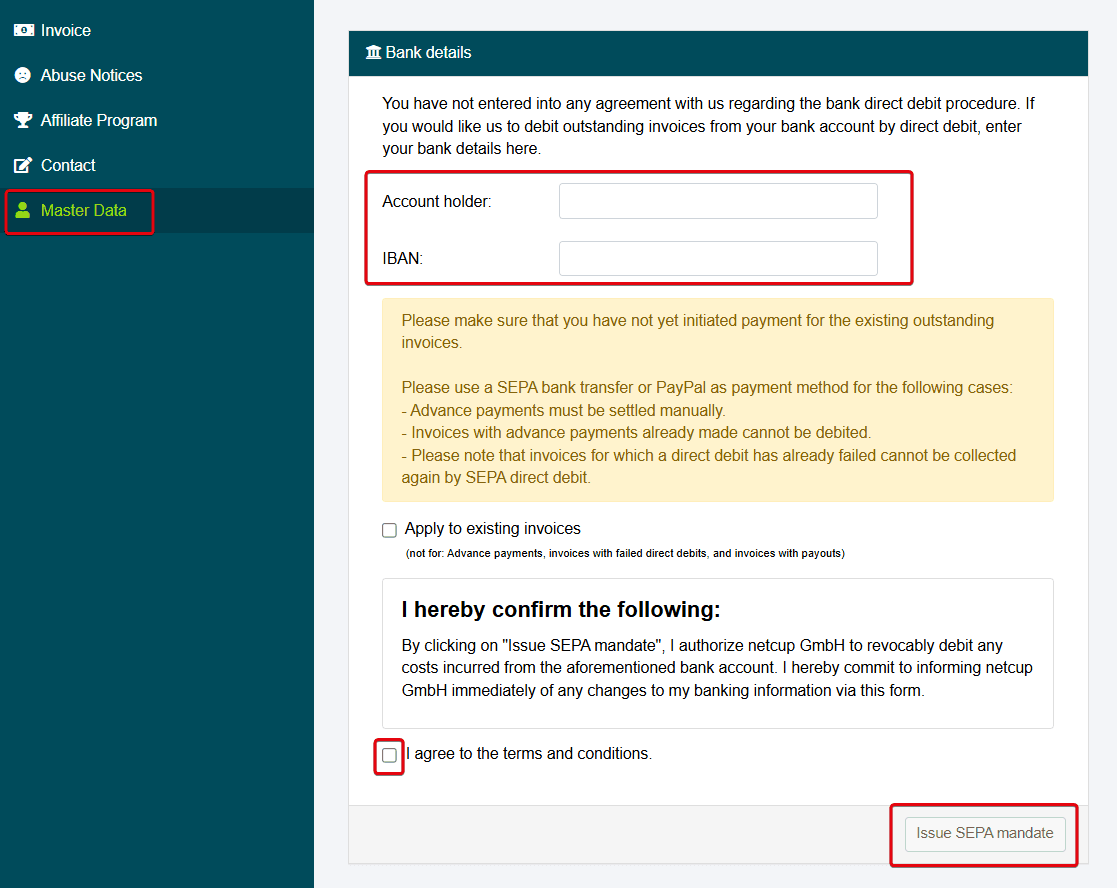
- Go to Master Data > Payment provider in the menu.
- Go to the Bank details section.
- Enter your account details.
- Read the terms and conditions, then accept them by checking the box.
- Click Issue SEPA mandate.
Changing or Deleting SEPA Mandate Details
- Log in to the Customer Control Panel (CCP).
- Go to Master Data > Payment provider in the menu.
Change
Overwrite your data and click on Change SEPA mandate to change your bank details.
Delete
Select Delete SEPA mandate to delete your currently stored data.