
Using the Server Control Panel in a Mobile Browser
Learn how to access the Server Control Panel (SCP) via your mobile device's browser and place the page on your home screen.
1. Opening Mobile Browser
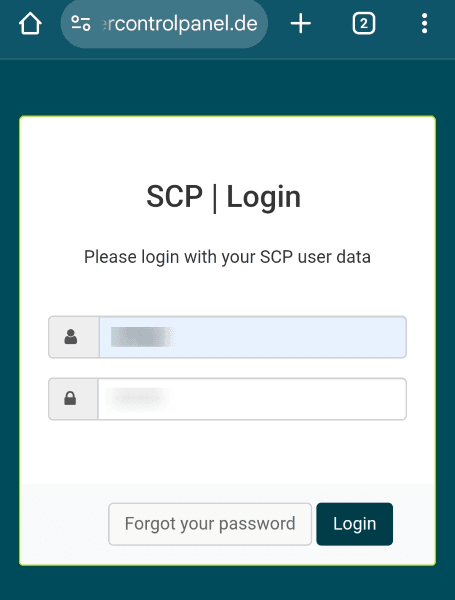
- Open your preferred browser on your mobile device.
- Enter the following URL: https://www.servercontrolpanel.de/ or https://www.customercontrolpanel.de/
- Enter your username and password.
- Tap Login.
- You can now use the Server Control Panel (SCP) or Customer Control Panel (CCP) on your mobile device.
2. Placing the Panel on the Home Screen
If you are using a different browser, please refer to the documentation provided by the respective browser.
Chrome
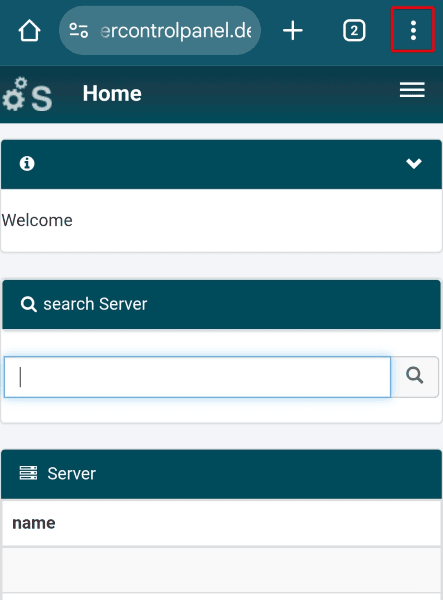
- Open the Server Control Panel (SCP) or Customer Control Panel (CCP) as described in chapter 2.
- Tap the Three-Dot Icon in the top right corner.
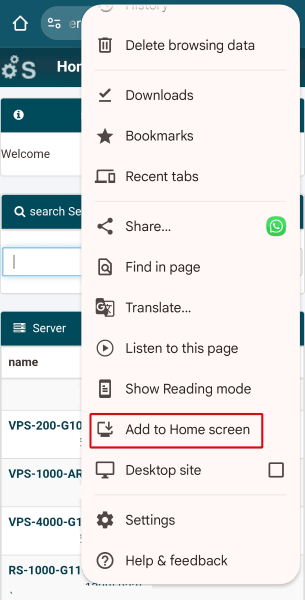
3. Scroll down and tap Add to Home screen.
4. Enter a name. It will then appear under the icon.
5. Tap Add.
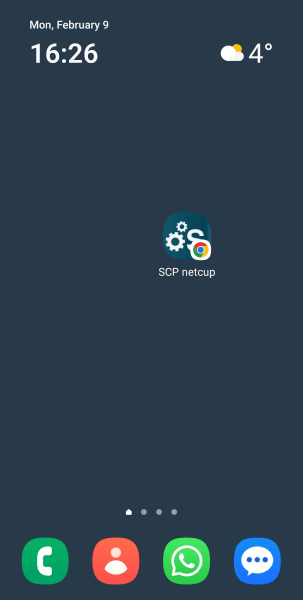
6. Drag and drop the icon directly onto the desired location on your home screen.
Alternatively, you can tap Add again. The icon will then appear in a free space on a page
of your home screen.
7. You can now access your Server Control Panel (SCP) or Customer Control Panel (CCP)
via the SCP Icon or CCP Icon on your home screen.
Safari
- Open the Server Control Panel (SCP) or Customer Control Panel (CCP) as described in chapter 2.
- Tap the Three-Dot Icon in the bottom right corner.
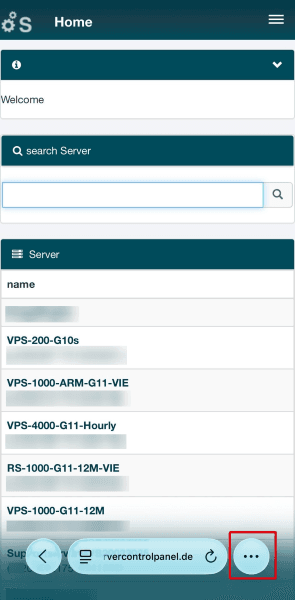
3. Tap Share > More > Add to Home Screen.
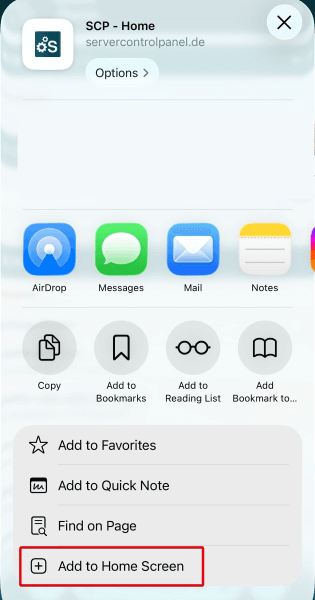
4. Enter a name. It will then appear under the icon.
5. Tap Add.
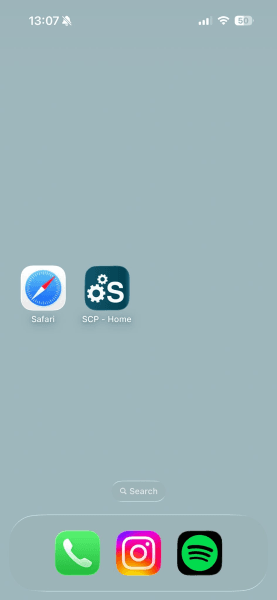
6. You can now access your Server Control Panel (SCP) or Customer Control Panel (CCP)
via the SCP Icon or CCP Icon on your home screen.
Last update: 10 August 2026
Was this article helpful?