
First Use of Your Server
Learn how to access your server for the first time.
1. Receiving Your Login Details
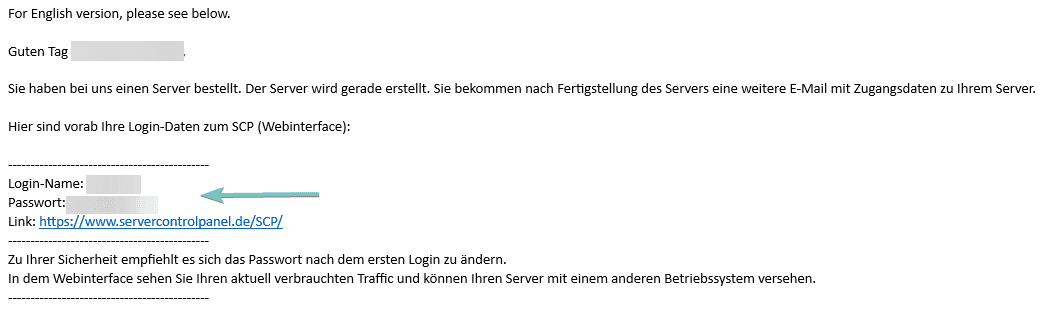
After having completed the ordering process, you will have received several emails. The email titled Zugangsdaten SCP contains your login details for the Server Control Panel (SCP).
2. Login
- Use these login details to navigate to the Server Control Panel (SCP) to start the server.
- After logging in for the first time, change your password to one that only you know. To do so, click the Account menu item in the top left bar, then go to Settings and Account Data and change your password in the Change Password field.
- We recommend following best practices and choosing a passphrase that is long and unique and only used for the SCP. It should contain both upper and lower case letters, numbers, and symbols.
- Return to the home page by clicking the netcup button in the top left corner of the top bar. Alternatively, you can click the SCP logo to the right of it.

3. Using the Server for the First Time
After you have changed the login details for the Server Control Panel (SCP), you can use the server for the first time. The server is preconfigured with an installation of Debian, a Linux distribution.
The server has the following configuration by default:
Operating System
Debian Minimal
Partition
Small Partition (Remaining space must be
partitioned by user)
Partition Type
Normal (No LVM)
Timezone
Europe/Berlin
Keyboard Layout
en-US
4. Connecting to the Server for the First Time
The home page lists all the servers you have ordered and displays information about the current status of the servers. You can select a server by clicking its name in the server list.

5. Screen
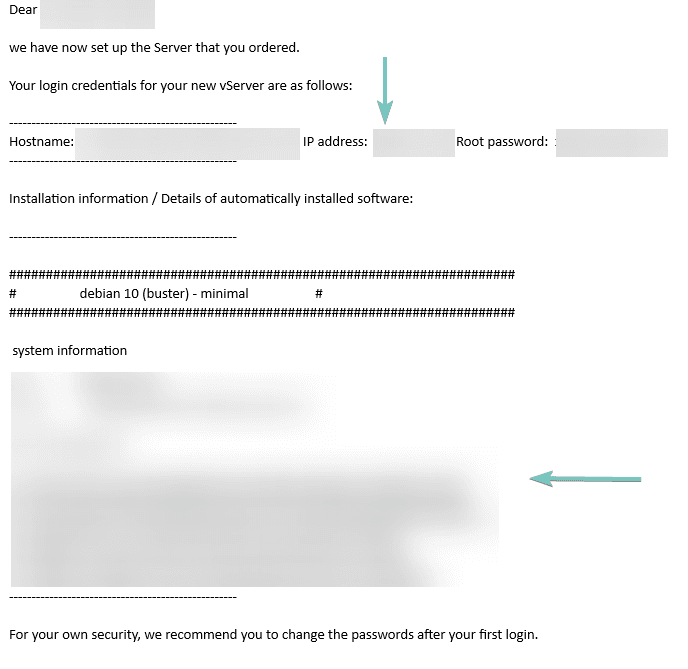
- Search for the email titled Ihr vServer bei netcup ist bereit gestellt. This email contains the root password you can use to log in to the server.
- Connect to the server by clicking the Screen menu item in the lower right bar. This will take you to the VNC console.
- Log in with the login details from the email. Most Linux distributions do not display any output when entering the password, not even stars (****) or dots (...). To increase security, the password field usually remains empty when entering the password, as this makes it more difficult for potential attackers to use the password length for attacks.
The keyboard layout is adopted by the operating system, so there may be deviations. After login, the layout can be configured at operating system level.
The standard username is always “root”.
6. Changing the Password
After logging in, change the password to one that only you know. To do this, enter the following command:
passwd
You will then be asked to enter new login details.