PHP Composer
Learn what PHP Composer is and how to view it in the Web Hosting Control Panel (WCP).
1. What is PHP Composer?
Composer is a package management system for PHP. It allows you to define third-party code packages used in a project. These can then be easily installed and updated. It uses PHP's built-in functions for automatically loading classes, PHP package repositories such as Packagist, as well as common project layouts and coding conventions.
You can find the official documentation for PHP Composer here: https://getcomposer.org/doc/ (external link)
2. Using PHP Composer
PHP Composer's functionality is centred around a single file, composer.json, which lists all the packages required for a project.
See a simple example below:
{
 "require": {
   "php": ">=8.1",
   "monolog/monolog": "^3.0",
   "guzzlehttp/guzzle": "^7.0"
 }
}
The composer install command automatically downloads all defined packages and places them in the vendor/ folder. As you can see below, a single line in your PHP code is sufficient to make all the packages available:
require 'vendor/autoload.php';
From this point on, all installed packages are immediately available without the need for manual copying or mounting.
Overview of the Most Important Files
File/Folder
Function
composer.json
Defines the desired packages, you'll write this file yourself
composer.lock
Specifies the exact versions of all packages and ensures reproducibility
vendor/
Contains all installed packages, do not add to the Git repository
vendor/autoload.php
Includes all packages in the code with a single line
3. PHP Composer in Web Hosting
Depending on the hosting environment, there are various ways to use PHP Composer. Here is an overview of the most common scenarios:
With traditional shared hosting, you share a server with other customers. However, not all providers allow the direct use of PHP Composer.
If an SSH access is available, PHP Composer can be run directly on the server (php composer.phar install).
If an SSH access is not available, you have to run PHP Composer locally on your own computer and upload the completed vendor/ folder via File Transfer Protocol (FTP).
Please note that not all shared hosting providers support PHP 8.x or meet the necessary system requirements.
Virtual Private Server (VPS) and Root Server (RS)
On a Virtual Private Server (VPS) or Root Server (RS), you have full control. PHP Composer can be installed globally and is available at all times. This is the most convenient environment for using PHP Composer.
Managed Hosting and Platform as a Service (PaaS)
Platforms such as Heroku, Laravel Forge and Cloudways automatically detect composer.json and run composer install on their own during deployment. The developer doesn't have to worry about anything else.
Most Important Commands
Command
Function
composer install
Installs all packages exactly as specified in composer.lock which is ideal for deployments
composer update
Updates packages within the defined limits
composer require paket/name
Adds a new package
composer remove paket/name
Removes a package
composer dump-autoload -o
Optimizes the autoloader for production use
An extension for PHP Composer is available starting with the Plesk Obsidian product line. As long as SSH access via /bin/bash is enabled, you can install it yourself.
4. Viewing PHP Composer in the Web Hosting Control Panel (WCP)
Proceed as follows to access your domain's PHP Composer in the Web Hosting Control Panel (WCP):
- Log in to the Customer Control Panel (CCP).
- Go to the Products menu item on the left.
- Select the web hosting product you want.
- Click the magnifying glass icon to the left of the product you want.
- On the Overview tab, click the Auto-Login WEB button under Login name for admin panel.
- Select the domain you want.
- On the Dashboard tab, click PHP Composer under Dev Tools.
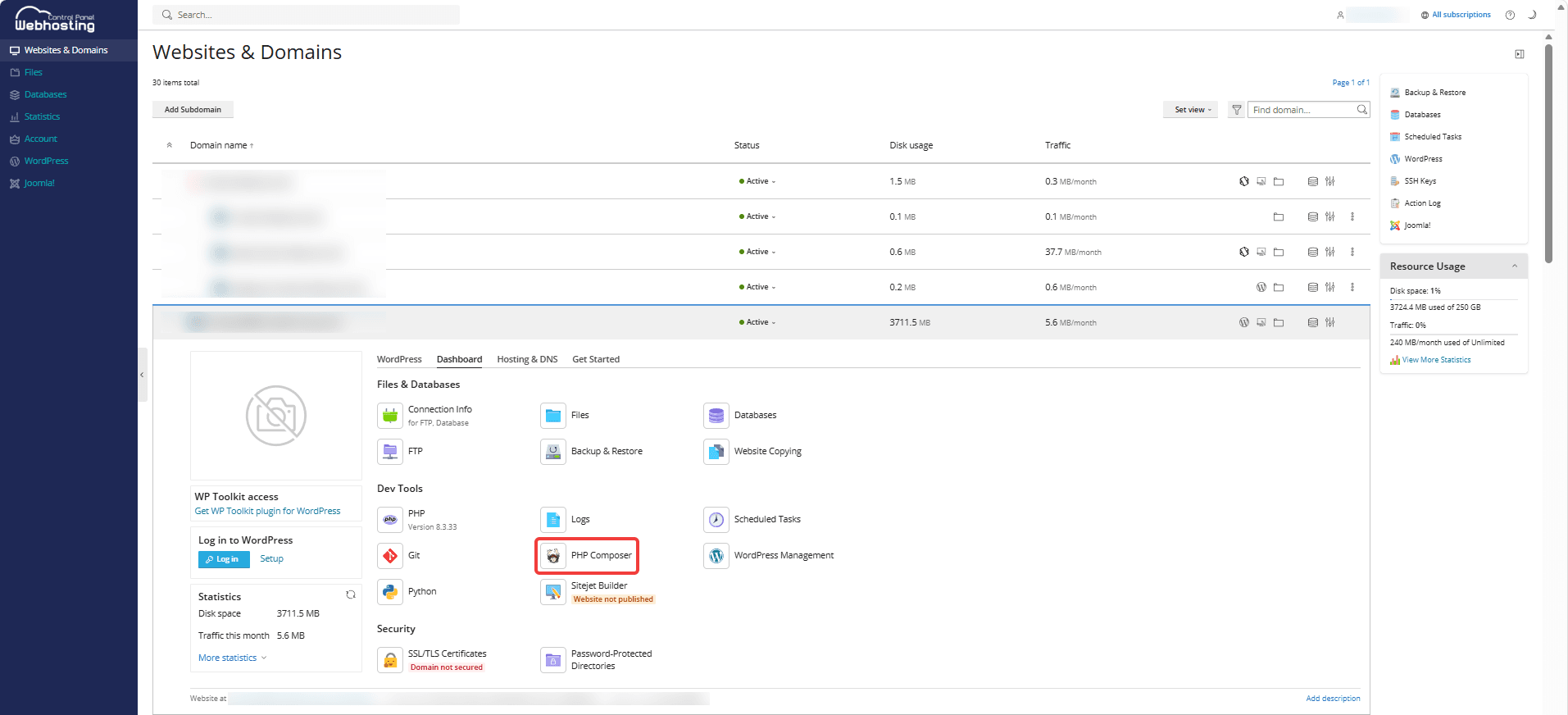
Click Scan to find your Composer applications.

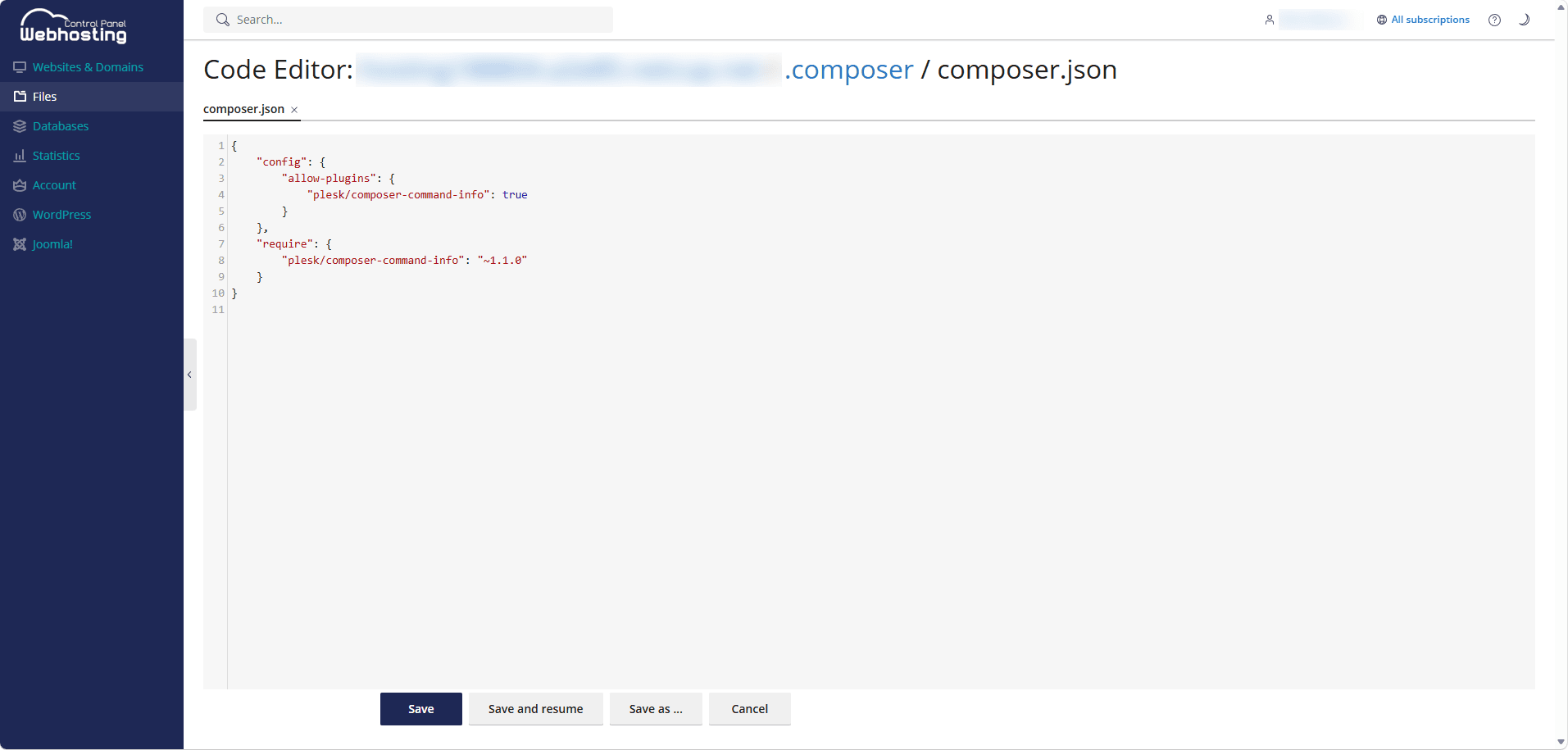
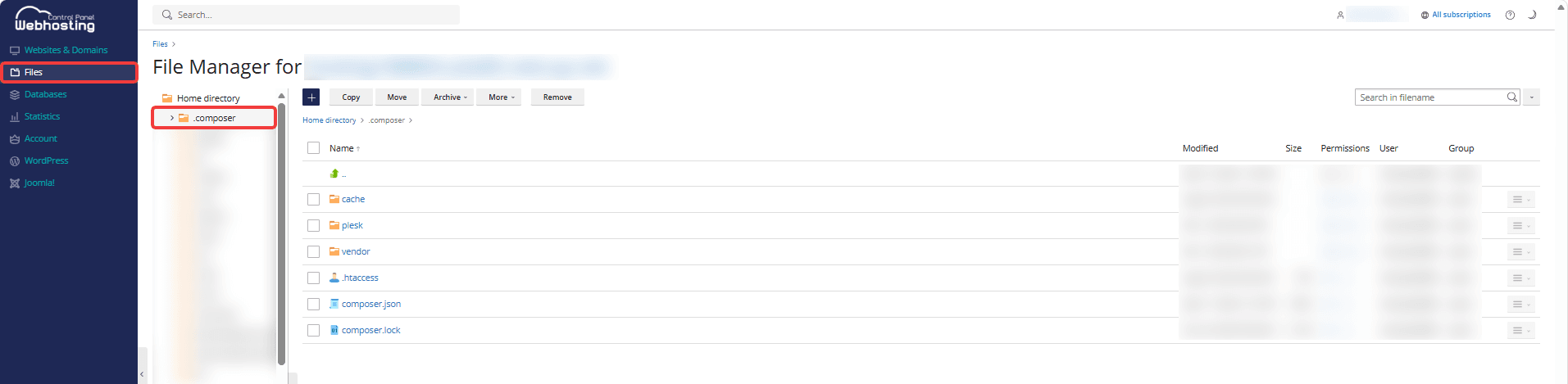
If no applications were found in your domain, you can click the .composer folder in the Files menu item. Here, you'll also find composer.json and composer.lock. Click the plus icon to create files.
When you click composer.json or composer.lock, the Code Editor opens, allowing you to edit the code and save it using the corresponding buttons at the bottom.